
TL;DR
- Java Edition enables locator bar automatically; Bedrock requires manual activation during world creation
- Use /gamerule locatorBar true command for manual Java activation when needed
- Wearing specific mob heads provides temporary invisibility to locator tracking
- Creative mode players remain hidden from survival/adventure mode locator bars
- Advanced waypoint commands allow custom indicator colors and display preferences
The player locator bar represents a revolutionary multiplayer enhancement introduced in Minecraft’s Chase the Skies update. This innovative feature eliminates the frustration of aimlessly searching for companions across expansive landscapes by displaying teammates as vibrant colored indicators along your experience bar. These visual markers dynamically update player positions, transforming coordination in collaborative projects and competitive scenarios.
Edition compatibility varies significantly between Minecraft versions. Java Edition automatically activates the locator functionality in multiplayer sessions post-version 1.21.6, whereas Bedrock Edition requires explicit activation during world configuration. Understanding these differences ensures optimal setup regardless of your preferred platform.
Strategic implementation of the locator bar enhances team-based activities like building massive structures, organizing raids, or coordinating resource gathering expeditions. The feature’s real-time tracking capabilities fundamentally change how players interact within shared environments.
Following the Minecraft 1.21.6 update, Mojang integrated the locator bar directly into Java Edition’s core multiplayer functionality. Most servers will display the feature automatically, but understanding manual activation ensures reliability.
Standard activation procedure involves:
- Launch Minecraft through the official launcher and access your desired multiplayer server
- Establish connection by entering the server address and designated world name
- Invite collaborators to your session; the locator overlay should appear above your experience bar
When automatic activation fails, utilize the in-game chat (default ‘T’ key) with this essential command: /gamerule locatorBar true. This manually enables the tracking system in Java environments.
Advanced customization becomes available through the waypoint modification command: /waypoint modify . This powerful tool allows server administrators to adjust indicator colors, sizes, and display parameters for enhanced team management.
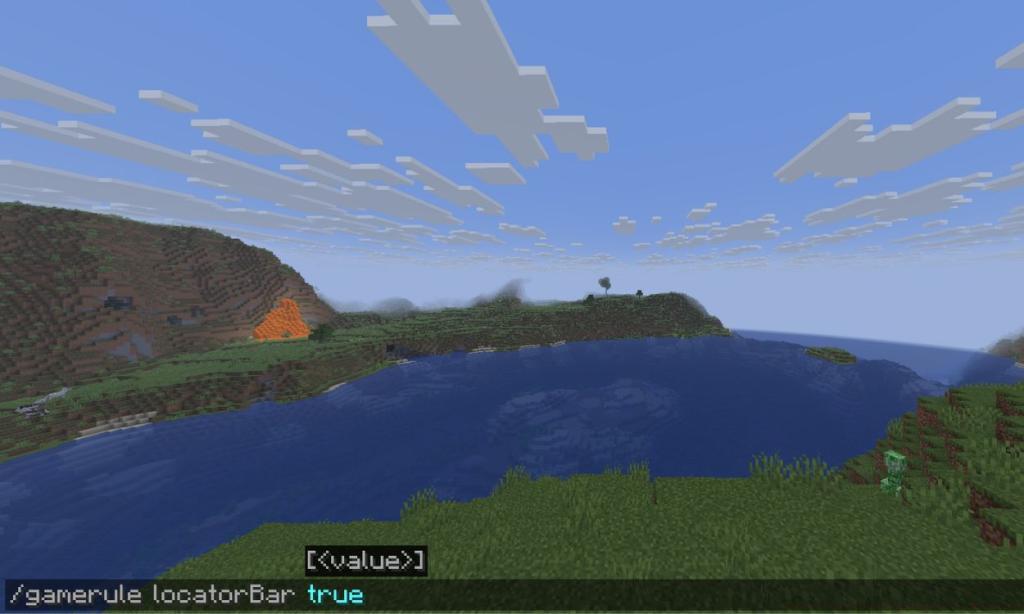
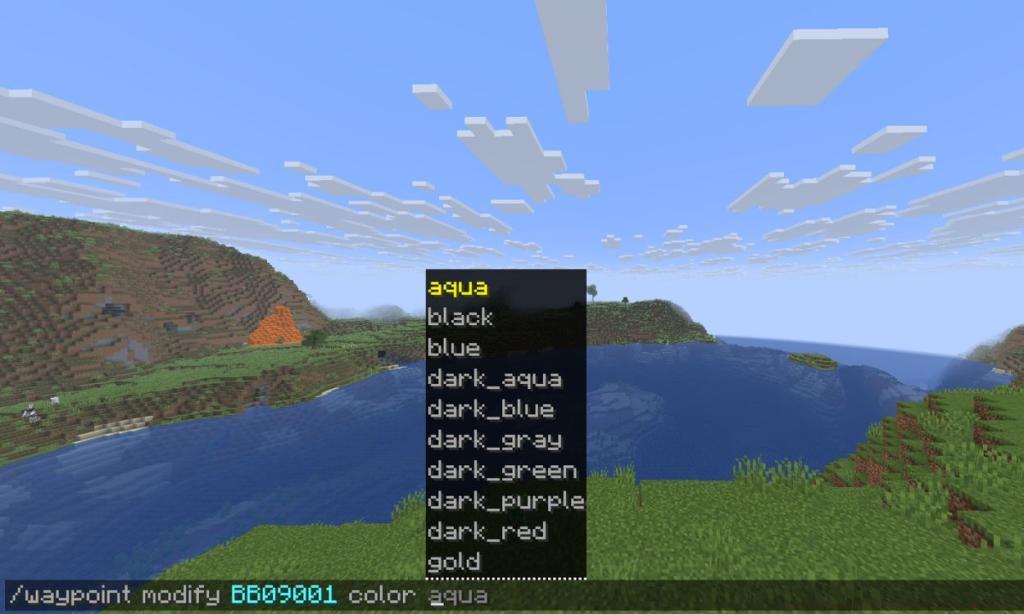
Minecraft Bedrock Edition employs a distinct activation methodology centered around world creation parameters. Unlike Java’s automatic implementation, Bedrock requires deliberate configuration during the setup phase.
Implementation sequence for Bedrock users:
- Access the Minecraft launcher and initialize the most recent Bedrock version
- Generate a new world instance to access the comprehensive customization interface
- Navigate to multiplayer settings and toggle the player locator option to enabled status
- Complete world creation; the locator bar will activate upon entering multiplayer mode
Pro tip: Always verify the locator bar functionality before inviting players to your world. Common oversight involves forgetting to enable the feature during initial configuration, requiring world recreation for activation.
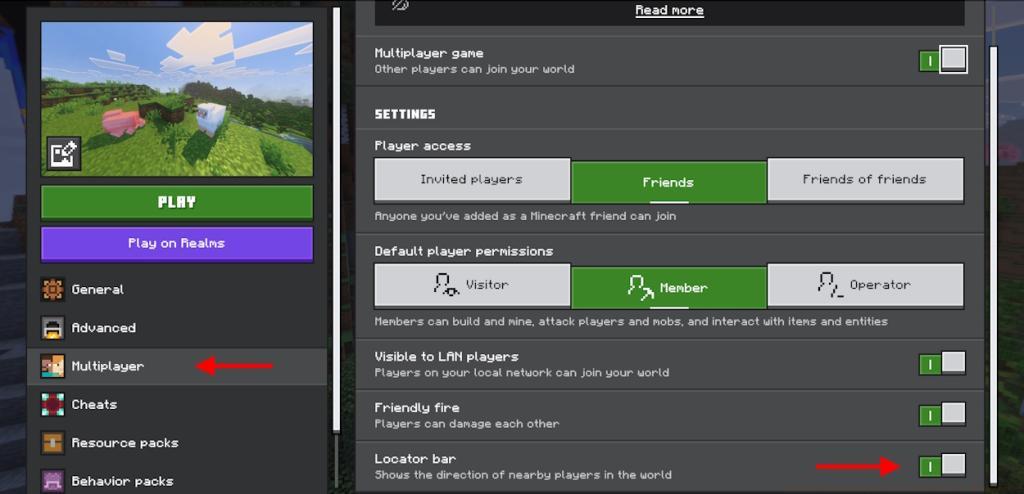
Mastering the locator bar’s capabilities transforms multiplayer coordination. The color-coded indicators provide immediate spatial awareness of teammate positions, significantly reducing communication overhead during complex operations.
Strategic implementation scenarios include:
- Construction Projects: Coordinate large-scale builds by monitoring worker positions and movement patterns
- Resource Expeditions: Track gathering party members across diverse biomes and terrain types
- PvP Engagements: Maintain tactical awareness of ally positions during combat situations
- Exploration Teams: Ensure group cohesion when investigating uncharted territories
Advanced players should leverage the distance estimation feature inherent in the indicator system. Closer players display with brighter, larger markers while distant companions show as smaller, faded icons.
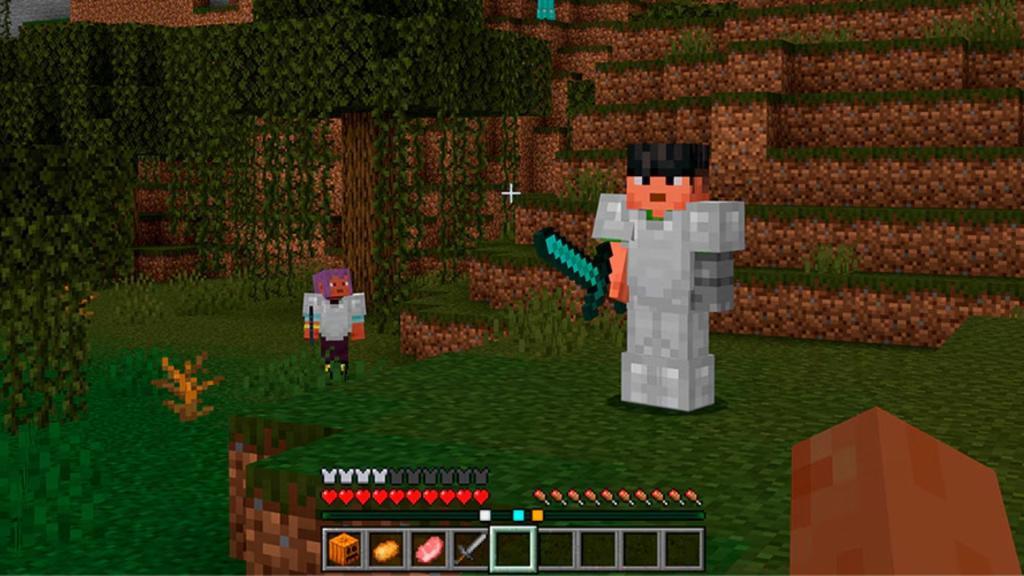
For comprehensive multiplayer strategies beyond locator usage, consult our Battlefield 6 Complete Guide for advanced team coordination techniques.
Strategic invisibility becomes crucial in certain multiplayer contexts. Minecraft provides multiple methodologies for concealing your position from locator tracking systems.
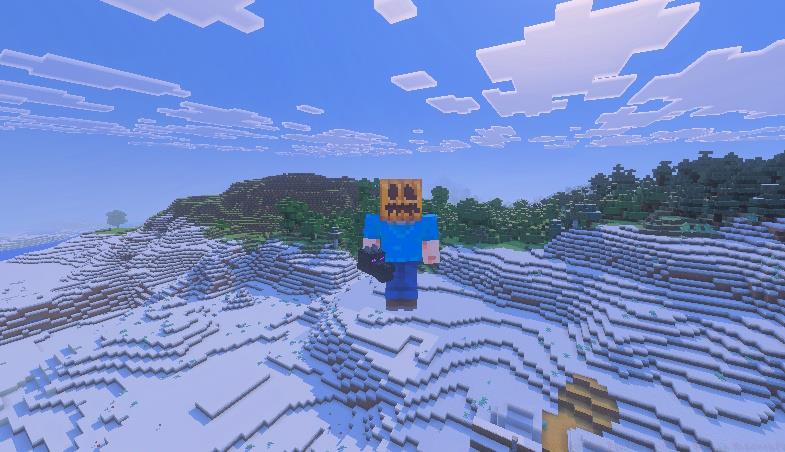
The most reliable stealth technique involves equipping specific mob heads. When wearing particular creature craniums, your player indicator temporarily vanishes from others’ locator displays, providing tactical advantages.
Alternative concealment strategies include:
- Game Mode Manipulation: Players in Creative mode remain invisible to those in Survival or Adventure modes
- Administrative Commands: Server operators can utilize /gamerule locatorBar false to disable tracking entirely
- Distance-Based Fading: Extreme separation (beyond render distance) naturally removes indicators
Important consideration: Mob head concealment provides temporary coverage rather than permanent invisibility. The effect persists only while wearing the specific headgear and dissipates upon removal.
For players seeking to enhance their tactical capabilities further, our BF6 Weapons Unlock Guide provides complementary strategic insights.
Action Checklist
- Verify automatic activation in Java Edition multiplayer servers
- Enable locator bar in Bedrock Edition during world creation
- Utilize /gamerule locatorBar true command for manual Java activation
- Customize indicator appearance using waypoint modification commands
- Implement stealth tactics using mob heads or game mode adjustments
No reproduction without permission:Tsp Game Club » How to Use Player Locator Bar in Minecraft Master Minecraft's player locator bar with setup guides, usage tips, and stealth strategies for multiplayer