
Comprehensive troubleshooting guide for The Finals EXCEPTION_ACCESS_VIOLATION error with proven fixes and advanced solutions
Understanding the EXCEPTION_ACCESS_VIOLATION Error
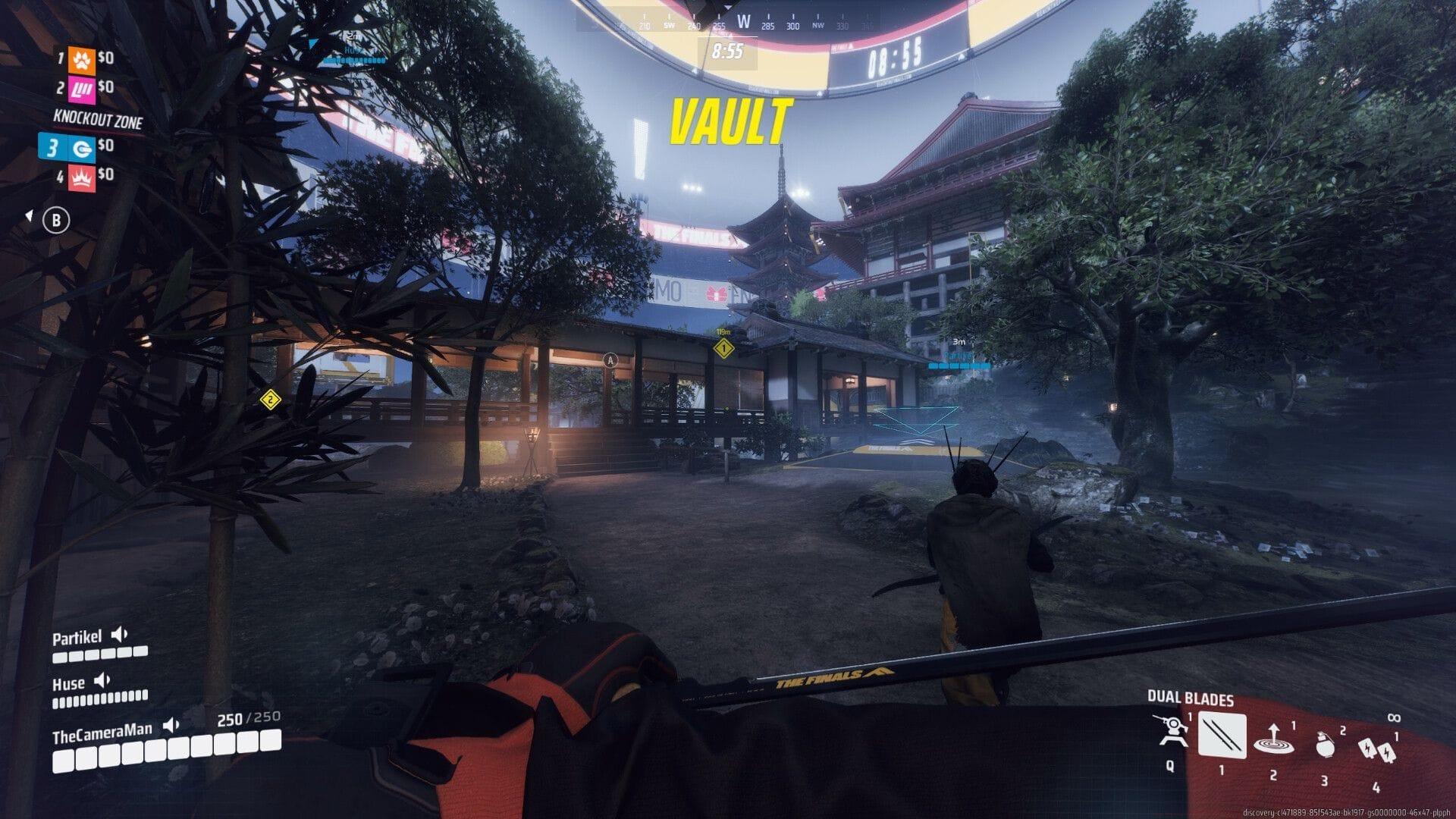
Gamers across the community have documented multiple occurrences of The Finals EXCEPTION_ACCESS_VIOLATION error, creating significant obstacles for those attempting to access the game and progress through competitive rankings. This comprehensive guide explores the underlying causes of this technical issue and presents verified methods to resolve it effectively.
The access violation error typically occurs when the game attempts to read or write to memory locations it doesn’t have permission to access. Common triggers include corrupted game files, outdated graphics drivers, incompatible software running in the background, or conflicts with specific hardware configurations.
Many players encounter this error during match loading screens or when transitioning between game modes, suggesting it may relate to asset loading processes or memory management within the game engine.
Primary Fixes: Game File Verification
Before exploring advanced solutions, begin with fundamental file integrity checks. Whether you launch The Finals through Steam or the EA application, repairing game files should be your initial troubleshooting step.
Steam Platform Repair Procedure:
Completing these steps will systematically identify and replace any damaged or missing game components for Embark Studios’ competitive first-person shooter.
EA Application Repair Method:
The EA system will conduct an automated verification of all game components, eliminating corrupted elements and downloading fresh replacements where necessary.
Pro Tip: Close all other applications before running file verification, as background processes can interfere with the repair operation. Additionally, ensure you have sufficient disk space for temporary files created during the verification process.
Advanced Graphics Configuration Solutions
Community feedback indicates that adjusting anti-aliasing parameters represents one of the most reliable approaches for circumventing this technical problem. The implementation process requires these specific steps:
This adjustment frequently resolves compatibility issues between certain GPU architectures and the game’s rendering pipeline, particularly on systems with older graphics cards or specific driver versions.
Additional Graphics Optimization Steps:
Many users report success by completely disabling the NVIDIA/AMD overlay features, as these can create conflicts with the game’s anti-cheat system and memory allocation.
Preventive Measures and Additional Troubleshooting
If the previously mentioned solutions prove ineffective, implement these additional system-level optimizations while awaiting official developer patches.
System Optimization Strategies:
Common Mistakes to Avoid:
The development team at Embark Studios actively monitors error reports and typically releases hotfix patches for widespread technical issues. Monitor official communication channels like their Twitter account, Discord server, and patch notes for announced solutions.
For persistent problems, consider submitting detailed error reports through official support channels, including your system specifications, error logs, and the specific circumstances when the crash occurs.
No reproduction without permission:Tsp Game Club » The Finals EXCEPTION_ACCESS_VIOLATION error: Possible reasons and fixes Comprehensive troubleshooting guide for The Finals EXCEPTION_ACCESS_VIOLATION error with proven fixes and advanced solutions