
Comprehensive troubleshooting guide for Elden Ring Nightreign black screen and fatal error crashes on PC
Understanding Nightreign’s Technical Issues
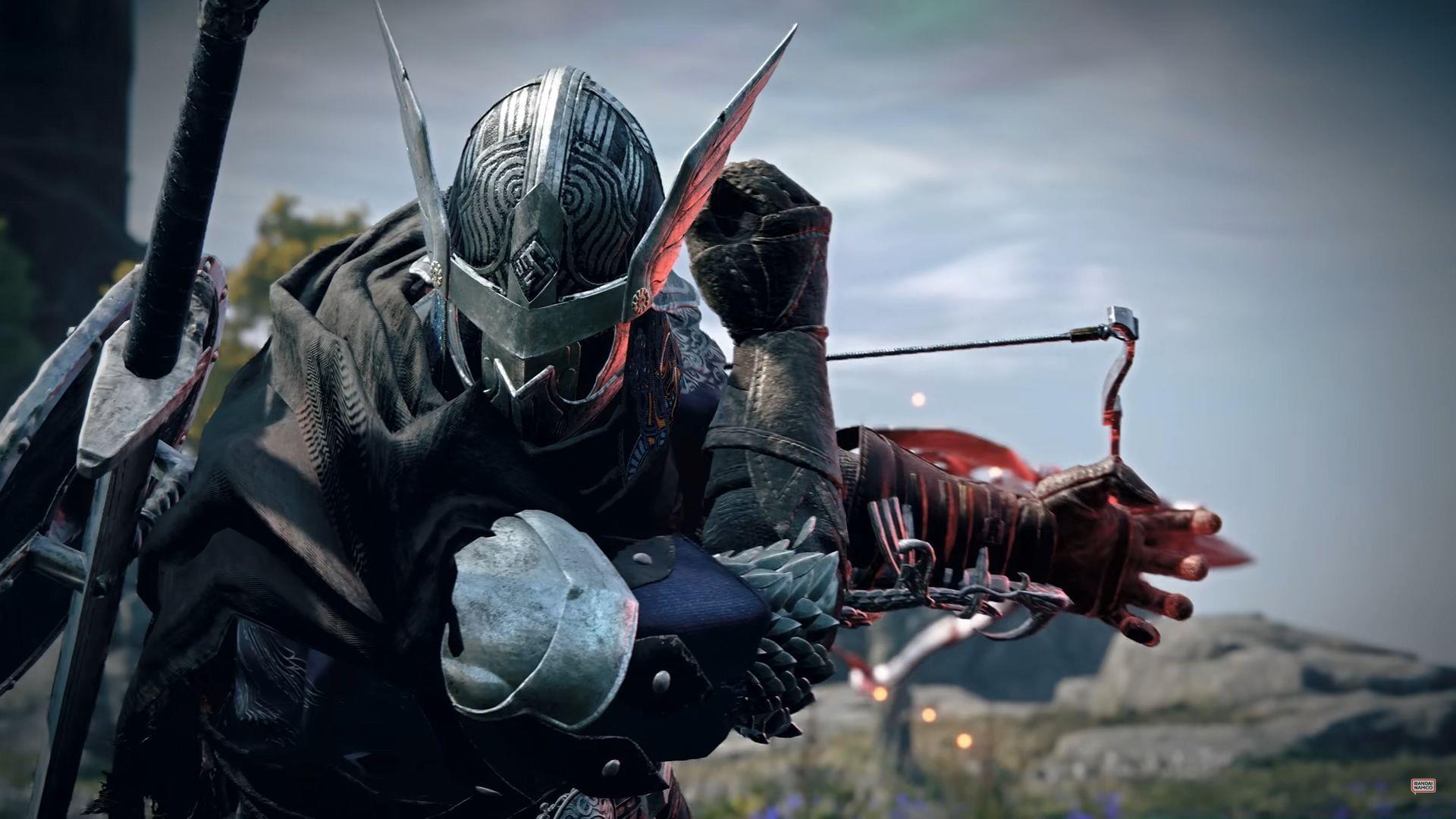
Elden Ring Nightreign represents a significant visual upgrade that introduces new technical challenges for PC gamers. Many players encounter sudden system crashes and persistent black screen issues, particularly during demanding sequences like boss encounters or complex environment loading.
While the expansion maintains reasonable VRAM requirements—typically staying below 6GB even at 1440p resolution—the real bottleneck emerges from processor overload and memory management conflicts. The enhanced lighting systems and detailed environmental effects place substantial strain on CPU resources, especially when background applications compete for processing power.
Fatal Error incidents frequently occur when the game engine encounters memory allocation problems or struggles to render the advanced visual effects that distinguish Nightreign from the original Elden Ring. These crashes often correlate with specific in-game events that trigger sudden resource demands.
Black Screen manifestations typically appear during game initialization or following loading screen transitions. These issues commonly stem from synchronization problems between the game engine and display hardware, particularly when frame rate caps aren’t properly configured or variable refresh rate technologies create timing conflicts.
Frame Rate Optimization Strategies
Proper frame rate management represents the most critical aspect of stabilizing Elden Ring Nightreign performance. The game engine maintains a hard-coded 60fps limitation for physics calculation consistency, making external frame rate control essential for preventing crashes.
Utilize third-party frame limiting tools such as Rivatuner Statistics Server, the Nvidia application suite, or your graphics card control panel (Nvidia Control Panel or AMD Adrenalin Software) to enforce a strict 60fps cap. This approach maintains consistent CPU workload distribution and prevents the performance spikes that trigger both visual stuttering and fatal error incidents.
For systems with less powerful hardware configurations, consider reducing the target frame rate to 30fps. While this represents a visual compromise, the adjustment ensures much more stable frame pacing and significantly reduces the likelihood of screen flickering or complete system crashes during intensive gameplay sequences.
Variable Refresh Rate technology frequently conflicts with Nightreign’s engine architecture, where physics calculations and rendering processes maintain direct dependencies on frame timing precision. Navigate to Windows Display Settings, access your monitor configuration options, and manually disable VRR functionality. Complete system restart remains mandatory after this adjustment—failure to reboot prevents the setting from taking proper effect.
Following VRR deactivation, enable vertical synchronization both within the game’s display settings and through your graphics driver control panel. This dual-layer sync approach prevents screen tearing artifacts while stabilizing the black screen issues and frame skipping that often occur during area transitions or loading sequences.
Advanced Troubleshooting Techniques
Beyond basic frame rate adjustments, several advanced optimization techniques can dramatically improve Nightreign stability. Background application management proves crucial—web browsers with multiple tabs, streaming software, and system monitoring tools can consume substantial CPU resources that Nightreign requires for stable operation.
Driver configuration excellence involves more than simple updates. For Nvidia users, accessing the Nvidia Control Panel and creating a specific Elden Ring Nightreign profile allows customized settings that override global configurations. Key adjustments include setting Power Management Mode to ‘Prefer Maximum Performance’ and configuring Texture Filtering Quality to ‘High Performance’.
AMD graphics card owners should utilize Adrenalin Software’s game-specific profiles, paying particular attention to Radeon Chill settings which can conflict with Nightreign’s internal frame pacing. Disable all forms of automatic graphics optimization from both AMD and Windows Game Bar to prevent unexpected interference.
System-level optimizations include adjusting Windows power plans to High Performance mode, disabling fullscreen optimizations for the game executable, and ensuring adequate virtual memory allocation. Players with 16GB RAM or less should consider increasing their page file size to at least 1.5 times their physical memory capacity.
For persistent crash issues, conduct clean driver installations using Display Driver Uninstaller in Safe Mode, followed by installing the latest stable driver versions rather than beta releases. Verify game file integrity through Steam or Epic Games Launcher, as corrupted shader cache files frequently contribute to black screen problems.
Prevention and Maintenance
Establishing a proactive maintenance routine significantly reduces Nightreign crash frequency over extended play sessions. Regular system monitoring using tools like MSI Afterburner or HWiNFO64 helps identify thermal throttling issues or memory leaks before they cause complete system failures.
Preventive driver management involves creating system restore points before updating graphics drivers and maintaining previous driver versions as rollback options. Many players report better stability with slightly older, well-tested driver releases rather than day-one updates.
Game-specific optimizations include lowering shadow quality and environmental detail settings during particularly demanding boss fights or in areas with complex particle effects. These temporary reductions can prevent crashes during critical gameplay moments while maintaining visual quality in less demanding sections.
For systems experiencing recurring issues despite these adjustments, consider clean Windows installations or dedicated gaming partitions that minimize background services and maximize available resources for gaming applications. The investment in system preparation often yields substantial stability improvements for demanding titles like Nightreign.
No reproduction without permission:Tsp Game Club » Elden Ring Nightreign Fatal Error and Black Screen issue: Potential fixes to try Comprehensive troubleshooting guide for Elden Ring Nightreign black screen and fatal error crashes on PC