
TL;DR
- Stereo headphones with 3D audio disabled provide optimal directional accuracy
- Console command snd_mixahead 0.05 reduces audio latency for faster reaction times
- Disable all music packs and VOIP positional audio to eliminate distractions
- Use Realtek tone compensation for volume balancing between game and system
- Avoid stereo enhancement commands that break Valve’s calibrated sound positioning
In the high-stakes environment of CS:GO, audio intelligence separates elite players from average competitors. Your ability to process sonic information directly impacts round outcomes, making sound configuration as crucial as mechanical aiming skills. Professional gamers consistently emphasize that auditory awareness provides approximately 40% of tactical intelligence during matches.
Quality gaming headphones represent just the foundation—proper in-game audio tuning transforms your equipment into a strategic weapon. Every footstep, weapon reload, and grenade pin pull reveals enemy positioning and intentions. This comprehensive guide delivers professional-grade audio optimization techniques used by top-tier competitors.
Understanding sound propagation mechanics enables you to anticipate opponent movements before visual confirmation. The subtle difference between concrete and metal surface footsteps, or the distinct audio signature of different weapon types, creates information advantages that translate directly to victory.
Begin your audio optimization journey in CS:GO’s main menu settings panel. While these options appear limited compared to console commands, they establish the fundamental audio framework for competitive play. Proper configuration here prevents common audio issues that plague inexperienced players.
Select “Stereo headphones” as your Audio Output Configuration—this setting provides the most accurate directional audio representation. Virtual surround sound and other spatial audio technologies introduce processing artifacts that degrade positional accuracy. The game engine automatically optimizes frequency response for competitive headphone profiles.
For players experiencing complete audio absence, verify your “Audio Device” matches Windows’ default playback device. Integrated sound cards typically appear as “Realtek High Definition Audio,” while USB headphones with dedicated DACs display as separate entries. Mismatched audio devices represent the most frequent cause of sound failure.
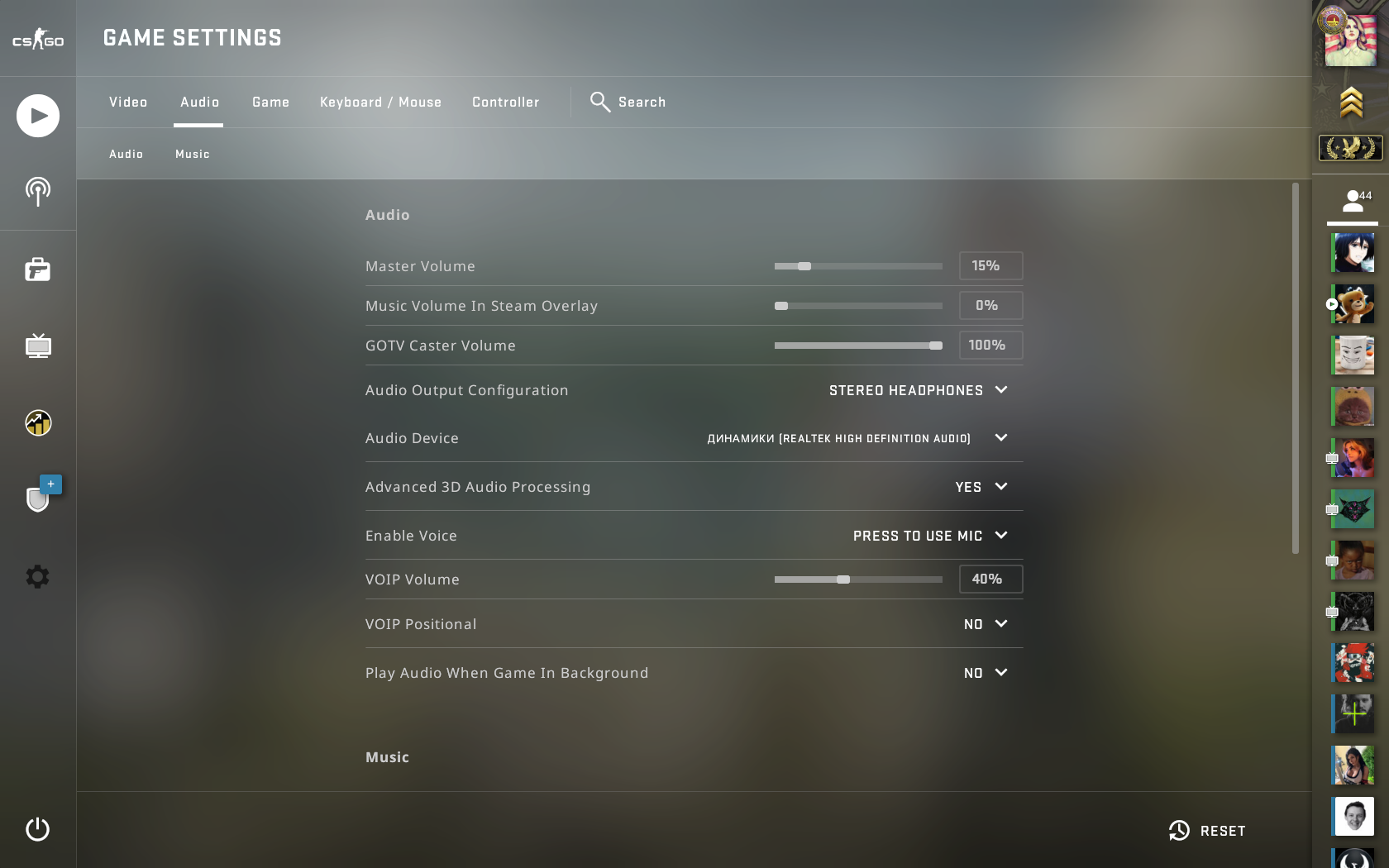
The “Advanced 3D Audio Processing” toggle demands immediate attention—disable this feature without exception. While Valve’s implementation creates immersive environmental acoustics, it artificially dampens external sounds when you’re positioned indoors. Competitive integrity requires consistent audio levels regardless of your map position.
Voice communication settings include “VOIP Volume” for teammate loudness adjustment and “VOIP Positional” audio. Deactivate positional voice audio immediately—hearing teammates’ voices shift direction based on their in-game location creates unnecessary cognitive load during critical moments.
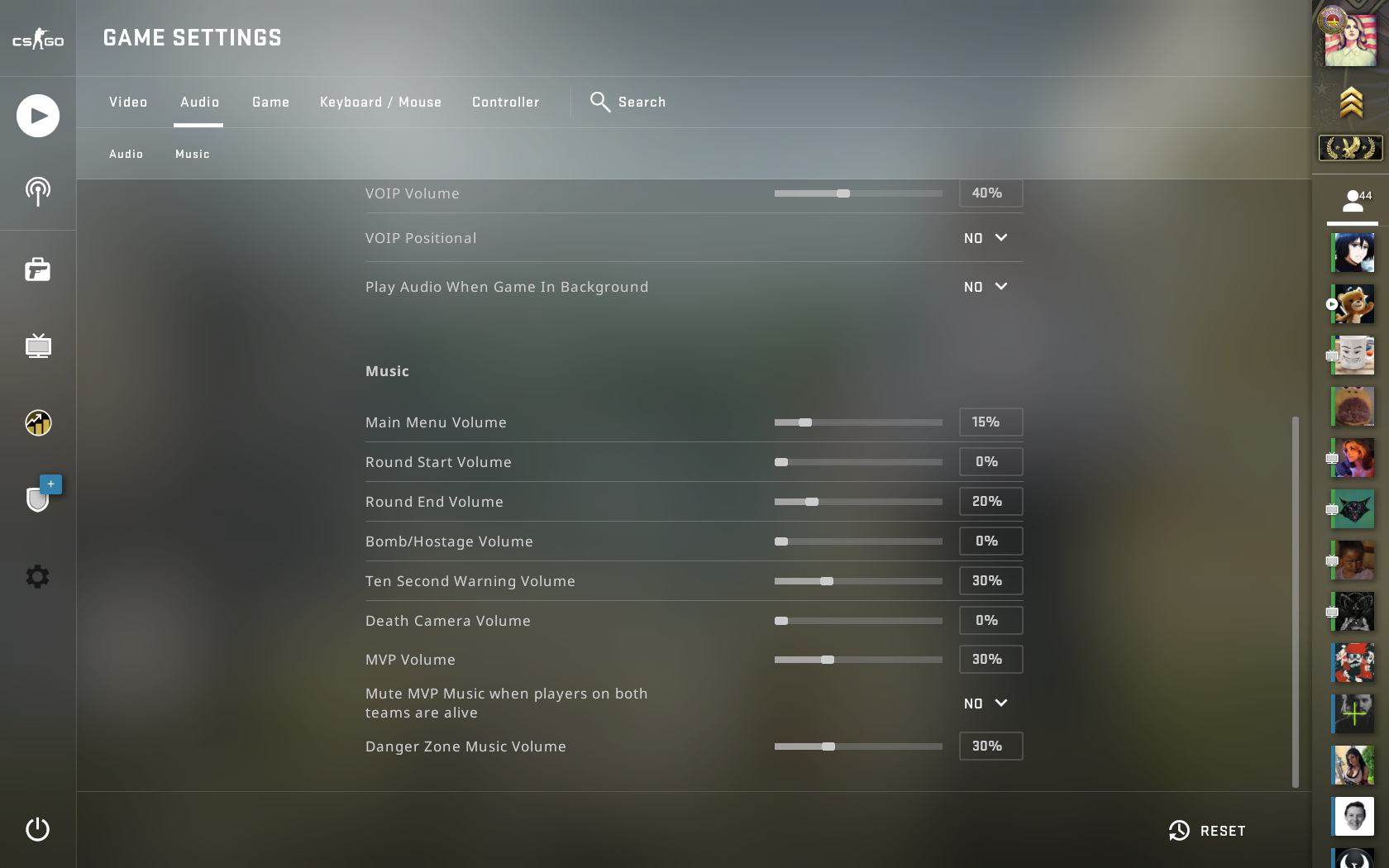
Music settings present significant distraction potential for competitive players. Numerous cosmetic music packs trigger audio cues during gameplay events, but these musical interruptions mask critical environmental sounds. Immediately reduce all music volume sliders to zero, preserving only the ten-second bomb timer audio for critical round information.
CS:GO’s developer console unlocks granular audio control beyond menu limitations. Exercise caution—indiscriminate command experimentation can permanently degrade audio performance. This section covers exclusively validated commands that enhance competitive audio without compromising game stability.
Resist recommendations to modify stereo enhancement parameters regardless of source credibility. Commands like dsp_enhance_stereo and snd_headphone_pan_exponent appear promising but inevitably destroy Valve’s meticulously calibrated audio spatialization.
The snd_mixahead parameter represents your most valuable audio optimization tool. This command controls audio buffer latency—lower values reduce the delay between game events and sound output. The default 0.1 setting provides stability, while 0.05 delivers near-instantaneous audio feedback for elite reaction times.
Execute snd_mixahead 0.05 without quotation marks for optimal performance. Lower-tier systems may experience audio stuttering—if performance issues occur, incrementally increase the value to 0.06-0.07 until stability returns. This fine-tuning process ensures your hardware delivers the fastest possible audio processing.
The volume command provides rapid master volume adjustment independent of menu settings. Professional configurations typically maintain values below 1.0 to prevent audio clipping during intense firefights.
Persistent low volume issues that resist menu and console adjustments often originate at the driver level. Navigate to Realtek HD Audio Manager’s “Sound Effects” tab and enable “Tone Compensation” to normalize game audio with system levels.
On some systems and driver versions this parameter is called “Loudness Equalization”
Beyond basic configuration, several advanced techniques further refine your audio competitive advantage. Understanding these methods separates competent players from truly exceptional audio technicians.
Driver-level audio enhancements like Windows’ “Loudness Equalization” can compensate for inconsistent volume levels across different game environments. However, these system-wide adjustments may introduce slight latency—weigh this tradeoff based on your specific needs and hardware capabilities.
Hardware compatibility represents another critical consideration. USB headphones with integrated DACs bypass your system’s sound card entirely, providing cleaner audio signals but sometimes creating compatibility challenges. Traditional 3.5mm connections utilize your existing audio hardware with more consistent results across different systems.
Professional player configurations often incorporate additional third-party software for audio compression and normalization. These tools ensure quiet footsteps remain audible while preventing loud gunshots from causing discomfort or distraction.
For players seeking comprehensive gameplay improvement, our Complete Guide offers parallel optimization strategies for other competitive shooters. Understanding audio principles across different game engines develops transferable skills that enhance overall gaming performance.
Increase your rank, win rate, and KDA in CS:GO
Sign up at Scope.gg, analyze your matches, learn mistakes, fix them and win more.
Action Checklist
- Set Audio Output to Stereo Headphones and disable Advanced 3D Audio Processing
- Turn off all music volume sliders except bomb timer warning
- Execute console command ‘snd_mixahead 0.05’ for reduced audio latency
- Disable VOIP Positional audio to eliminate directional voice distractions
- Enable Tone Compensation/Loudness Equalization in audio drivers if volume issues persist
No reproduction without permission:Tsp Game Club » How to improve your sound in CS:GO? Complete guide by SCOPE.GG Master CS:GO audio settings for competitive advantage with console commands and sound optimization techniques