
TL;DR
- Disable shot meter for significant green window boost and visual clarity improvement
- Set Pro Stick orientation to Absolute for consistent controls regardless of court position
- Turn off Passive Dribble Hand Switches to maintain complete ball handling control
- Configure defensive settings based on position: big men need less Box Out Assist
- Optimize HUD elements to reduce visual clutter while maintaining essential feedback
Mastering NBA 2K26 begins with understanding where to find the critical configuration options that separate casual players from competitive champions. The settings menu holds the keys to optimizing your entire gaming experience.
From the main menu interface, navigate directly to the Features section where you’ll discover three essential customization hubs that control every aspect of your gameplay:
- Settings (comprehensive gameplay options and rule adjustments)
- Controller Settings (input sensitivity and button mapping configurations)
- Customize HUD (visual interface elements and on-screen displays)

NBA 2K26 Settings Navigation Interface
Each configuration section contains specific performance optimizations that directly influence your in-game effectiveness. Understanding this organizational structure ensures you can quickly adjust settings between game modes without wasting precious gameplay time.
Essential Shot Timing Configuration
Your shooting proficiency foundation begins with proper shot timing configuration. Maintain Shot Timing activation for all competitive online modes – mastering this skill component is non-negotiable for serious players seeking consistent performance.
Shot Timing Visual Cue presents two primary optimal selections: Push or Release timing mechanisms. Release timing often feels more intuitive since it synchronizes with the natural basketball motion of the ball leaving your player’s hands, while Push timing provides marginally earlier feedback for anticipation-based shooting.
tip
Your MyPlayer jump shot creator overrides this specific setting, but it remains crucial for Play Now and other modes where you control multiple players with varying shooting forms.
Pro Stick Optimization
Configure Pro Stick Orientation to Absolute positioning. This maintains consistent dribbling control mappings regardless of your court location, eliminating the need to mentally adjust inputs based on which basket you’re attacking.
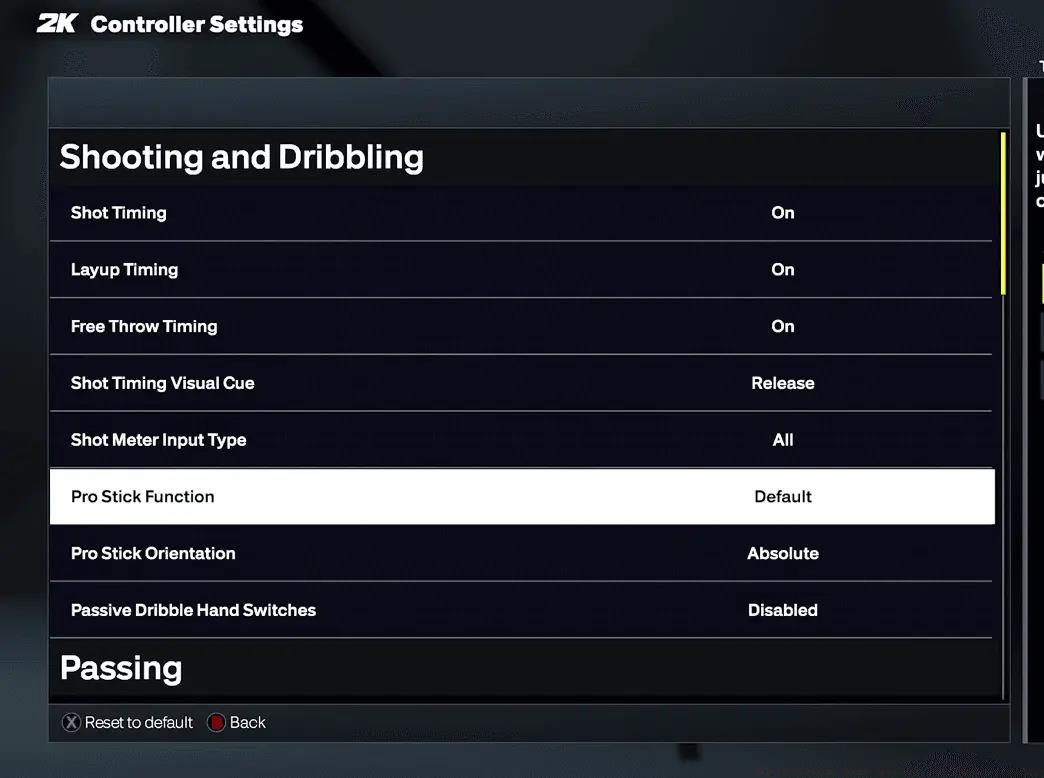
NBA 2K26 Shooting and Dribbling Control Settings
Pro Stick Function should remain on Default configuration. Switching exclusively to Dribble Moves Only eliminates your capability to execute hop steps, floaters, and scoop shots during driving sequences – essential offensive tools for advanced players.
Critical Dribbling Settings
This adjustment provides massive impact: Immediately disable Passive Dribble Hand Switches. This setting activates by default, causing your player to automatically switch dribbling hands during stationary positioning. You require complete ball handling authority, not randomized switches that potentially telegraph your intended moves to defenders.
Passing Configuration
For Pass Target Profile selection, maintain Default configuration unless you possess specific playstyle preferences. The Auto Lob to Moving Receiver functionality should remain deactivated; you cannot afford the game autonomously deciding when to execute lob passes versus bullet passes during critical possession moments. Meanwhile, pass target sub-configurations provide distinctive feels for individual players, so experiment incrementally during gameplay to discover your personal balance point.

NBA 2K26 Advanced Passing Configuration Options
warning
Automated lob passes frequently result in interceptions when you intend to zip passes to open shooters. Maintain manual control over all passing types for optimal possession security.
Who to Guard configuration represents a strategic personal preference with significant gameplay implications. Deactivating this option provides enhanced defensive freedom without the magnetic attraction toward your assigned offensive matchup. However, when participating with unfamiliar teammates, maintaining activation assists with defensive communication and proper positioning awareness.

NBA 2K26 Defensive Configuration Interface
Set Pro Stick Defense to Absolute orientation for consistency benefits mirroring offensive configurations. Pressing upward consistently raises your defensive hands regardless of court positioning, creating muscle memory development.
Box Out Assist Strength configuration depends primarily on your player position specialization:
- Post players/Big men: Reduce assistance for superior control over specific boxing-out assignments
- Perimeter players/Guards-Wings: Default or moderately increased for generalized help defense situations
Advanced defensive tip: Combine these settings with strategic stick movement – quick directional flicks rather than sustained pressure often produce superior steal attempts without compromising defensive positioning.
Shot Meter
This configuration represents where elite competitors distinguish themselves. Disable Shot Meter Visibility for Shots completely. While initially intimidating, you’ll receive substantial green window expansion that dramatically improves shooting consistency over time.

NBA 2K26 HUD Customization Options
important
Top-tier players universally disable the shot meter. The combined benefits of meter-deactivated shooting bonuses and reduced visual distraction create superior focus on authentic release timing mechanics.
Maintain meter activation for layups and dunk attempts since these actions feature distinct timing windows and animation sequences. For free throw situations, challenge yourself to disable the meter here as well for comprehensive shooting mastery development.
Visual Feedback Optimization
Perfect Release Animations should utilize clear, immediately recognizable visual effects. Flame and Party Time options deliver excellent confirmation signals without creating gameplay distractions. Position these indicators Above Player placement for instant feedback recognition without diverting attention from live action.
Shot Feedback visibility operates most effectively on Simple setting for immediate green confirmation reception. If you desire comprehensive data regarding defensive contests and precise timing metrics, utilize All Shots configuration, but Simple provides the fastest feedback for rhythm-based shooting development.
Performance-Focused Adjustments
Reduce Motion Blur completely to zero within primary settings. This enhancement dramatically improves visual clarity during high-speed gameplay sequences, facilitating superior player movement tracking and defensive rotation reactions.
Turbo and Fatigue indicators should remain visible without becoming obstructive. Position them on court surface placement with moderate sizing specifications so you can effectively monitor stamina metrics without visual interface clutter.
Additional performance tip: Adjust camera settings to provide wider court visibility – this improves peripheral awareness for both offensive passing lanes and defensive help situations.
Game Difficulty and Speed
Configure Game Difficulty to All-Star level for practice mode sessions. This matches predominant online gameplay parameters, ensuring your practice repetitions translate directly to competitive performance situations. Game Speed should remain at 50 (standard default) to maintain consistency with online mode timing.
Maintain Fatigue activation during practice repetitions. You must comprehend stamina management dynamics and how energy depletion affects your player’s performance capabilities in authentic game scenarios.
Camera and Replay Settings
Action Replays can be configured to Never display if you’re efficiently progressing through MyCareer game sequences. After Basket Camera Cuts should similarly remain disabled to preserve gameplay flow continuity and minimize interruptions.
Strategic consideration: While disabling replays accelerates gameplay, occasionally reviewing key moments during practice sessions can provide valuable mechanical insights for technique refinement.
Multiple configuration options perform optimally at their factory default values:
- Skip Passes: Maintain activation for comprehensive court vision capabilities
- Icon Lead Passing: Default configuration preserves proper pass timing mechanics
- Pro Stick Pass Type: Normal selection delivers the most consistent passing reliability
- Foul Out: Six foul limit aligns with standard basketball regulation rules

Professional Insight: When uncertain, begin with default configurations and implement gradual adjustments aligned with your specific playstyle requirements.
Additional stability tip: Avoid frequent settings changes during competitive sessions – consistency in configuration promotes muscle memory development and mechanical reliability.
MyCareer Optimization
Concentrate on configurations that accelerate gameplay pacing: deactivate replay sequences, disable post-basket camera transitions, and optimize your HUD for rapid feedback processing. Your MyPlayer build determines numerous gameplay elements, making controller configurations increasingly critical for personalized performance.
Online Competitive Play
Every configuration should prioritize consistency and peak performance. Meter-deactivated shooting, absolute stick orientation, and disabled passive dribbling provide maximum control during high-stakes competitive situations.

Play Now and Team Modes
Since you’re controlling diverse players with varying attribute specifications, your controller configurations must function universally across all character types. This represents where absolute orientations and default functional settings become fundamentally essential.
Mode-specific strategy: In team modes, consider slightly increasing pass assistance settings to accommodate unfamiliar teammate tendencies and connection variations.
Action Checklist
- Navigate to Features menu and disable shot meter for shooting boosts
- Configure Pro Stick to Absolute orientation for consistent controls
- Turn off Passive Dribble Hand Switches for complete ball control
- Adjust defensive settings based on position specialization
- Optimize HUD elements to reduce clutter while maintaining feedback
- Test configurations in practice mode before competitive play
No reproduction without permission:Tsp Game Club » NBA 2K26 Guide: Best Settings for Competitive Play Master NBA 2K26 settings for competitive edge: controller optimization, HUD configuration, and gameplay adjustments